What you will read in this content:
- How to disable auto-download in Call of Duty Mobile?
- How to enable auto-download in Call of Duty Mobile?
- Advantages of canceling auto-download in Call of Duty Mobile
- Tutorial on reducing the storage size of Call of Duty Mobile
- Do you use auto-download in Call of Duty Mobile?
- Frequently Asked Questions
If you have downloaded Call of Duty Mobile, after installing the game, you still have to perform many downloads. Even after the initial download during the game’s installation, entering each match may require downloading necessary information. Many of these downloads are unnecessary and only consume your internet data.
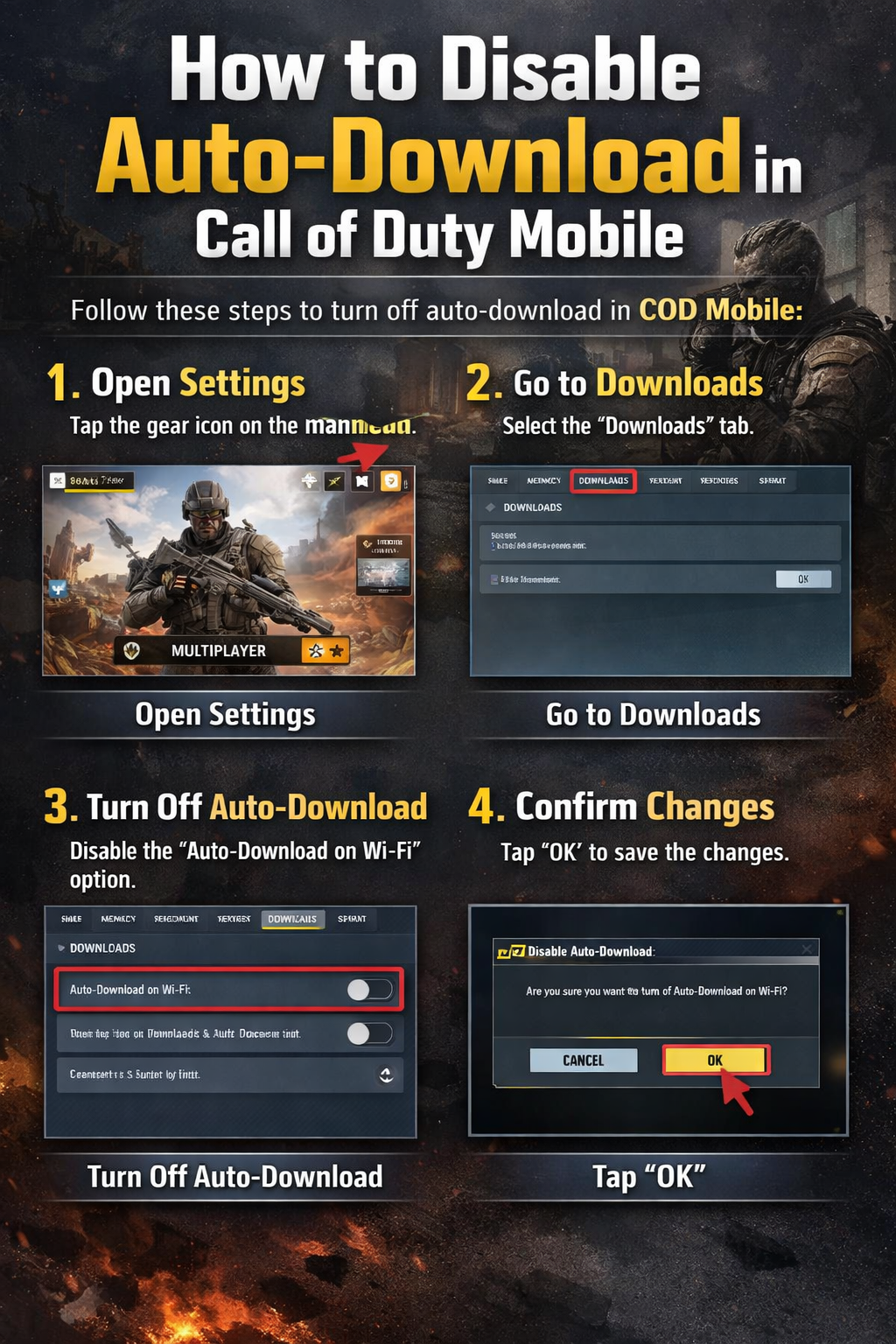
These downloads happen automatically, but don’t worry, there is a way to cancel auto-download in Call of Duty Mobile. in this content we examine how to disable auto-download in COD.
How to disable auto-download in Call of Duty Mobile?
We want to examine how to disable auto-download in COD so you can control your internet usage and have a better experience playing Call of Duty Mobile.
-
Log into your Call of Duty Mobile save account.
-
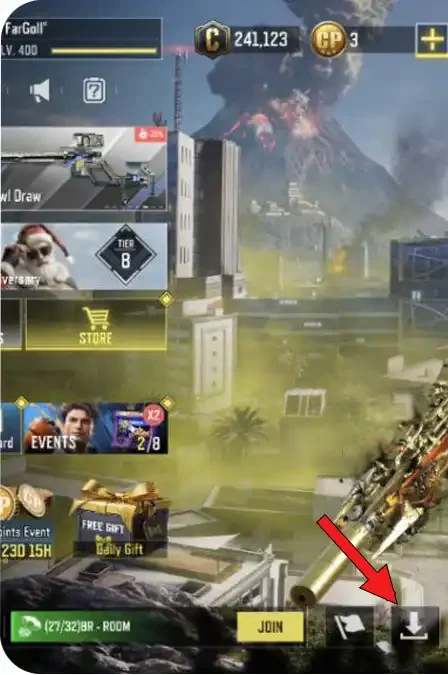
On the main game screen itself, click on the Downloads option. The icon for this option is a downward-pointing arrow.
In the Download Manager section, you will see the options: Recommended, Maps, Weapons, Operators, Other. Clicking on each one allows you to turn off its auto-download using the toggles (arrows) displayed next to them.
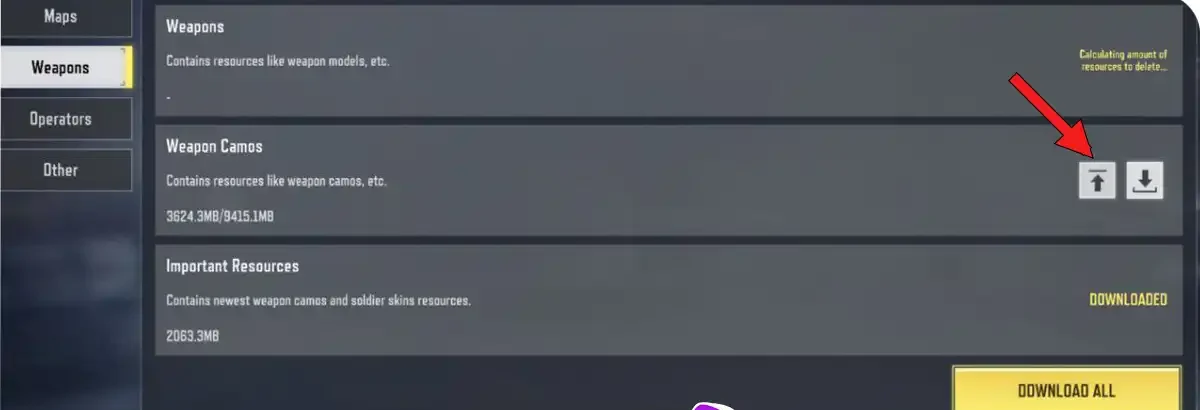
It’s that simple. After this, all downloads will only occur after your confirmation. However, some downloads are essential, and you cannot continue playing the game without completing them.
How to enable auto-download in Call of Duty Mobile?
Data such as map details, weapons, characters, and details related to each match are downloaded automatically by Call of Duty Mobile. In addition to these, Call of Duty Mobile updates are also downloaded automatically after each update is released, and you cannot choose the download time yourself—a reason many users seek to turn off auto-download.
However, canceling auto-download in COD usually doesn’t cause problems. For example, after canceling auto-download in Call of Duty Mobile, updates are downloaded with user confirmation; a notification is displayed to inform you about the update download. If you confirm, the download starts. However, sometimes you cannot access the game until you download and install the updates.
Advantages of canceling auto-download in Call of Duty Mobile
-
Mobile storage space is less occupied, and temporary and non-essential information is not stored. This is one of the best ways to reduce the size of COD.
-
Much less internet data is consumed.
-
Due to reduced data read/write operations on the mobile’s storage, the game runs slightly faster.
We recommend that if you have a mid-range or older phone, continue with us in the article on how to disable auto-download in COD so the game runs better and faster. If you have a flagship phone with more storage space, it’s better to download all Call of Duty Mobile files to enjoy the game in its best state. However, this consumes a lot of internet data, and your data plan might constantly run out.
Tutorial on reducing the storage size of Call of Duty Mobile
If auto-download is active, the game will undoubtedly occupy a very large amount of space in a short time. Sometimes, nearly 10 GB of storage space can be allocated to Call of Duty Mobile. However, you can reduce the game’s size, but note that the data you delete may need to be downloaded again. Nevertheless, if you are looking for how to stop auto-download in COD, this method also helps reduce the game’s size.
To reduce the size of Call of Duty Mobile, you must go to the Downloads page and delete the information you don’t need and that occupies a lot of space. On this page, data for various maps, weapons, blueprints, and different characters are stored. For example, if you delete data for a map, you will be forced to download the various information again when entering that map next time. Anyway, this can significantly reduce the size of Call of Duty Mobile.
| Type of Downloaded Data | Explanation | Impact on Size Reduction | Need to Re-download? |
|---|---|---|---|
| Multiplayer Maps | Includes maps you play less often | High | Yes, upon re-entry |
| Battle Royale Maps | Data for BR maps | High | Yes |
| Weapon Skins | Extra skins and Blueprints | Medium | Only if used |
| Characters | Operator models and data | Medium | If selected again |
| HD Graphics Files | High-quality textures | High | Yes |
| Old Event Files | Data for expired events | Low to Medium | No |
| Auto-download Temp Data | Non-essential files | Low | No |
Do you use auto-download in Call of Duty Mobile?
Auto-download in Call of Duty Mobile is the reason your phone’s storage gets filled by COD. Every detail and piece of data in the game is downloaded by your device and stored in memory. With the tutorial provided in this content, you can cancel auto-download in COD and free up your phone’s storage. What is your opinion? Do you think this option should be enabled, or is disabling auto-download in COD a better choice?
Frequently Asked Questions
Can auto-download in Call of Duty Mobile be canceled?
Yes; using the tutorial provided in this content, you can proceed to cancel auto-download in Call of Duty Mobile.
Under what conditions is it better to keep auto-download enabled?
If you have a flagship phone with high internal storage and unlimited internet, keeping auto-download enabled can provide a more complete gaming experience without frequent download interruptions.
Can I delete all downloaded information?
You can delete almost all downloaded information except for the game’s installation files. However, some information is essential for running the game, and you will be forced to download this information again from scratch.
About the Author